
Website performance is about much more than how quickly a page loads.
A website may appear to load quickly, but if buttons take too long to respond, menus feel sluggish or users receive no visual feedback after an interaction, the experience can still be frustrating.
This is where Interaction to Next Paint (INP) comes in.

Since March 2024, INP has been an official Core Web Vital, replacing First Input Delay (FID) as Google’s metric for measuring responsiveness. The change was introduced because FID only measured the delay before the browser started processing the first interaction, while INP provides a much broader view of how responsive a page remains throughout a user’s visit.
In this article, we will explain what INP is, how it differs from FID, how its results are evaluated and what you can do to improve your website’s responsiveness.
Understanding INP: From Concept to Measurement
At its core, Interaction to Next Paint measures how quickly a web page responds to user interactions.
These interactions can include:
Clicking a button;
Tapping an element on a touchscreen;
Typing on a keyboard;
Opening a menu;
Adding a product to a shopping cart;
Expanding an accordion;
Interacting with a form or other dynamic element.
When a user interacts with a page, they expect some form of visual response. For example, clicking an “Add to Cart” button should result in a visible indication that the product has been added.
If nothing happens for several hundred milliseconds, the user may wonder whether their action was registered at all.
INP evaluates the latency of interactions throughout the user’s visit rather than focusing only on the first interaction. It reports a single value representing the page’s overall responsiveness, generally based on the slowest interaction observed, with some outliers excluded.
A lower INP means that the page is generally able to respond quickly to user interactions.
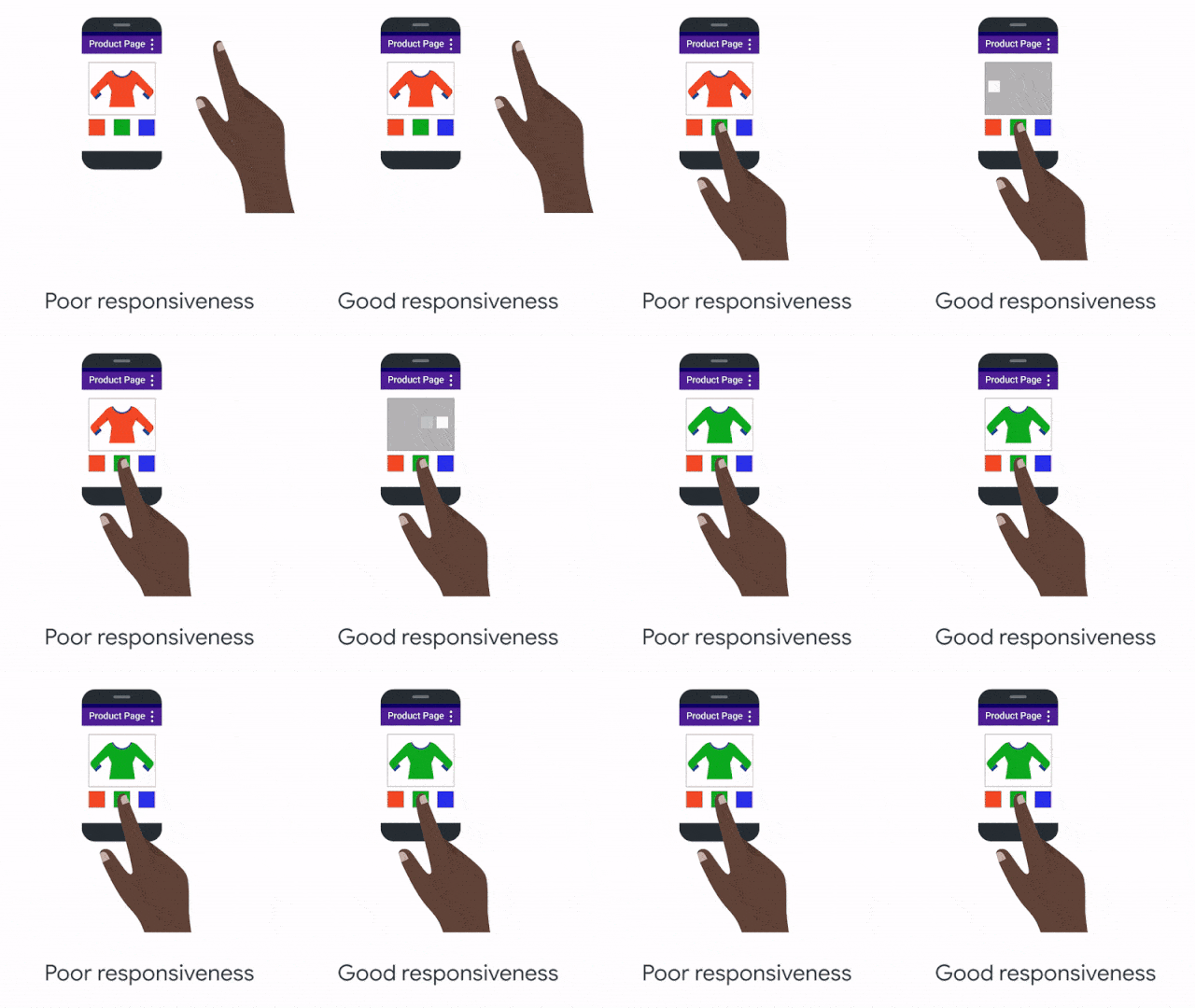
Why Does This Matter?
→ A customer finds a product they want and clicks Add to Cart.
→ The button appears to do nothing.
→ They click again.
→ Still nothing happens.
→ A few seconds later, the cart finally updates and the customer realizes that both clicks were registered.
This is a poor user experience, even if the website technically loaded quickly.
INP is designed to capture this type of responsiveness problem.
Google’s data also shows why measuring interaction throughout the page lifecycle matters. Users spend the majority of their time on a page after the initial load, so responsiveness cannot be evaluated only during the first moments of a visit.
How Is INP Measured?
INP can be evaluated using several web performance tools, including:
PageSpeed Insights
Chrome DevTools
Chrome UX Report (CrUX)
Real User Monitoring (RUM) tools
Other tools that use the Web Vitals data
PageSpeed Insights is particularly useful because it can provide field data from the Chrome User Experience Report when data is available for the page.
For a more detailed analysis, RUM solutions can provide additional information about which specific interactions are causing poor INP and under what circumstances they occur.
Understanding INP Scores: Good, Needs Improvement and Poor
Google uses three categories to evaluate INP performance:
INP score | Assessment |
200 ms or less | Good |
More than 200 ms and up to 500 ms | Needs Improvement |
More than 500 ms | Poor |
A page with an INP of 200 milliseconds or less provides a responsive experience for users. Results between 200 and 500 milliseconds indicate that there is room for improvement. Anything above 500 milliseconds is considered poor and suggests that users may experience noticeable delays when interacting with the page.
It is important to remember that Core Web Vitals are evaluated using field data, with the recommended threshold assessed at the 75th percentile of page loads, segmented by mobile and desktop devices. A single laboratory test therefore does not tell you the complete story about how real users experience your website.
Why INP Matters for User Experience
INP is fundamentally a user experience metric. A responsive website makes interactions feel immediate and predictable. A slow website can make users question whether their actions were registered, even when the underlying functionality eventually works correctly.
This matters particularly for websites with a high level of interactivity, such as:
E-commerce stores;
Online booking systems;
Web applications;
Financial platforms;
SaaS products;
Complex forms;
Websites with filters, search tools and dynamic interfaces.
Improving INP can therefore contribute to a smoother user experience and may support better engagement and conversion outcomes.
Does INP Affect SEO?
This is where it is important to be precise. INP is one of Google’s Core Web Vitals, which are part of Google’s broader page experience signals. However, a good INP score does not guarantee higher search rankings.
SEO performance depends on many factors, including relevance, content quality, links, technical accessibility, page experience and other signals.
The practical takeaway is simple: improving INP should primarily be viewed as an investment in website usability and user experience, with potential SEO benefits as part of a broader optimization strategy.
INP vs. First Input Delay (FID)
Both FID and INP were designed to measure responsiveness, but they approach the problem differently.
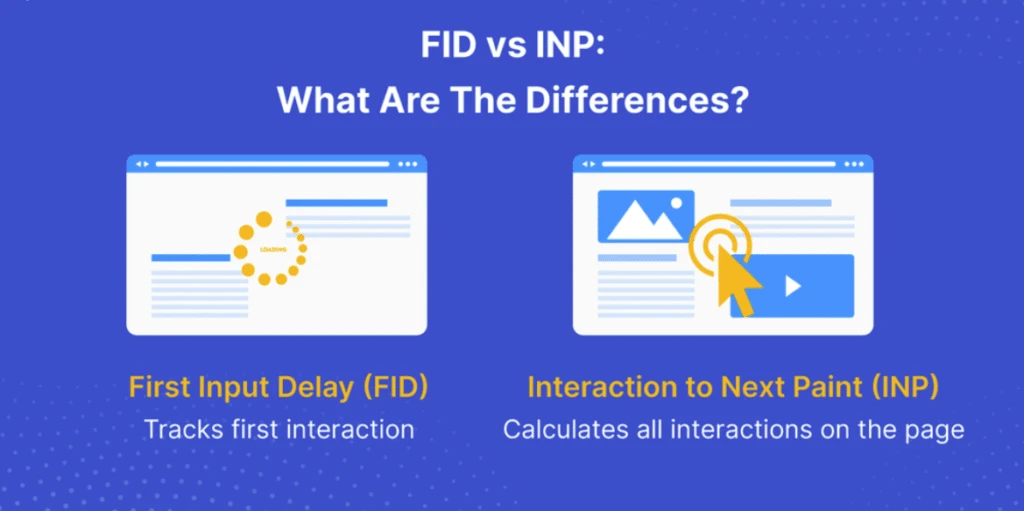
First Input Delay measured only the delay before the browser started processing the user’s first interaction.
INP takes a much broader approach by observing interactions throughout the user’s visit and evaluating how quickly the page responds with a visual update. This makes INP a more comprehensive measure of real-world responsiveness.
For example, imagine a user visits an online store. They click a navigation menu immediately after the page loads, and the site responds quickly. FID would primarily tell us that the first interaction was handled quickly.
But what if the user later:
Applies a product filter;
Opens a product gallery;
Changes a quantity;
Adds an item to the cart;
Opens the checkout form;
and all of these interactions are slow?
FID would not provide a complete picture of that experience. INP is designed to do exactly that.
How to Improve Your INP Score
Improving INP is not about applying one universal optimization. The first step is to identify which interactions are slow and why.
Google’s current guidance recommends starting with field data whenever possible, then reproducing problematic interactions in a controlled environment such as Chrome DevTools. Once the cause is identified, the relevant part of the interaction can be optimized.
1. Break Up Long JavaScript Tasks
Long-running JavaScript tasks can block the browser’s main thread and prevent it from responding quickly to user interactions.
Breaking large tasks into smaller pieces allows the browser to handle user input sooner.
This can reduce input delay and make the interface feel considerably more responsive.
2. Reduce Unnecessary JavaScript
Modern websites can depend on large amounts of JavaScript for everything from animations and tracking to menus, filters and dynamic content.
Not all of this JavaScript is necessary.
Removing unused scripts, reducing unnecessary third-party code and avoiding excessive client-side processing can reduce the amount of work the browser has to perform.
This is particularly important for complex websites and e-commerce platforms.
3. Optimize Event Handlers
When a user clicks, taps or interacts with an element, JavaScript event handlers may need to perform a series of operations.
If those operations take too long, the interaction becomes slow.
Review the code triggered by important interactions and look for unnecessary calculations, excessive DOM manipulation or other expensive operations.
The goal is to do as little work as possible before the browser can provide visual feedback.
4. Reduce Input Delay
INP can be affected by the amount of time the browser has to wait before it can start processing an interaction.
One common cause is a busy main thread running other JavaScript tasks.
Reducing long tasks and unnecessary JavaScript can therefore help the browser respond more quickly when the user interacts with the page.
5. Reduce Large Rendering Updates
Even after an interaction has been processed, the browser still needs to render and display the visual result.
Large or complex rendering updates can increase this presentation delay.
For example, an interaction that triggers a large section of the page to be rebuilt may take considerably longer than one that updates only a small element.
Google recommends avoiding large rendering updates and unnecessarily complex layouts when optimizing INP.
6. Keep the DOM Manageable
A very large or complex Document Object Model (DOM) can increase the amount of work the browser needs to perform when rendering changes.
This can become particularly noticeable when user interactions trigger updates to large sections of the page.
Reducing unnecessary DOM elements and avoiding unnecessarily complex page structures can therefore help reduce rendering work and improve responsiveness.
7. Pay Attention to Client-Side Rendering
Websites that use JavaScript to generate large amounts of HTML in the browser can introduce additional processing and rendering costs.
This is not necessarily a problem by itself. However, rendering large amounts of HTML in response to user interactions can delay the presentation of the next frame.
If your website relies heavily on client-side rendering, this is an area worth investigating when diagnosing poor INP.
8. Test the Interactions That Matter
Don’t optimize your website based solely on a single PageSpeed Insights score. Think about the actions that matter most to your users. For an e-commerce website, these might include:
Opening the navigation menu;
Using product filters;
Changing product quantities;
Adding products to the cart;
Opening a product gallery;
Applying discount codes;
Moving through the checkout process.
Test these interactions and look for noticeable delays. The goal is not simply to achieve a better number. It is to make the website feel faster and more responsive.
How to Diagnose INP Problems
A good optimization process usually starts with field data. If your website has enough traffic to appear in the Chrome UX Report, PageSpeed Insights can show real-user Core Web Vitals data.
For more detailed analysis, a Real User Monitoring solution can provide additional context, such as:
Which interaction caused the poor INP;
Whether it happened during or after page load;
What type of interaction it was;
Which page was affected;
What device or environment the user was using.
Once you know which interaction is causing the problem, reproduce it locally using Chrome DevTools. This allows you to investigate what is happening on the main thread and identify the JavaScript or rendering work responsible for the delay.
This combination of field data and laboratory testing is much more useful than trying to optimize blindly.
INP Is About More Than Page Load Speed
One of the most important things to understand about INP is that it changes the way we think about website performance.
A page can have:
Fast loading;
Good LCP;
Good CLS;
and still provide a frustrating experience if its interactive elements respond slowly.
That is why performance optimization should not stop once the initial page load has been improved. A genuinely fast website should also feel responsive when users interact with it.
Final Thoughts
Interaction to Next Paint provides a broader way to evaluate website responsiveness than the metric it replaced.
Instead of focusing only on what happens during the first interaction, INP looks at how the page responds throughout the user’s visit. This makes it particularly useful for identifying responsiveness problems on modern, highly interactive websites.
The most important thing is not to treat INP as just another score to improve. Use it as a way to understand how real users experience your website.
Start with field data when available, identify the interactions that cause problems, reproduce them in a controlled environment and then optimize the underlying JavaScript and rendering work.
A website that responds quickly feels easier to use, more reliable and more professional. And that is ultimately what good web performance should achieve.